
Build a pixel-style CRT interface
Learn how to use tait-crt-interface-skill to compose a pixelated CRT-style UI: prepare pixel sprites, photo and map text, load the skill, adjust pixel/palette/CRT distortion and scanlines via its panels, assemble menu/file/map/stats modules, and export a retro interface sample. The article lists verifiable UI components and which technical details to confirm in the skill docs.
Image Analysis
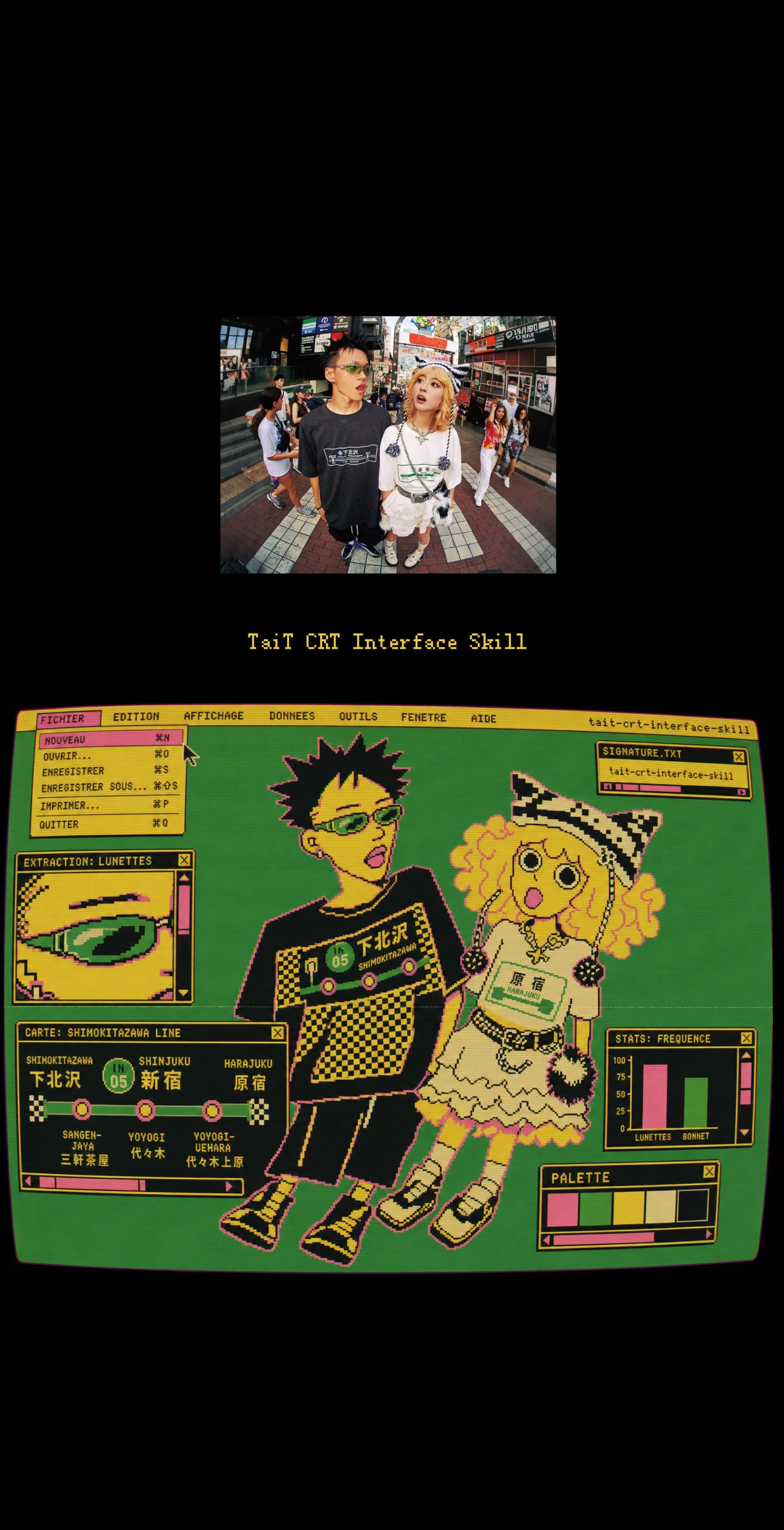
Image 1 — Observable facts (readable text, UI steps, chart data, visible phenomena)
- Center-top large title (pixel-style yellow font):
- "TaiT CRT Interface Skill"
- Yellow menu bar at top of screen (left to right visible items, in French):
- "FICHIER" "EDITION" "AFFICHAGE" "DONNEES" "OUTILS" "FENETRE" "AIDE"
- Small pale-yellow text on the right of the menu bar: "tait-crt-interface-skill"
- Top-left opened dropdown (under FICHIER, pink highlighted item at top) — readable menu items and shortcuts (French):
- "NOUVEAU ⌘N"
- "OUVRIR... ⌘O"
- "ENREGISTRER ⌘S"
- "ENREGISTRER SOUS... ⌘⇧S"
- "IMPRIMER... ⌘P"
- "QUITTER ⌘Q"
- Small window at top-right (title bar):
- Title: "SIGNATURE.TXT"
- Visible text inside: "tait-crt-interface-skill"
- A horizontal progress/loading bar inside the window (colored to match the UI theme)
- Upper-left center panel title:
- "EXTRACTION: LUNETTES"
- The panel shows a pixelated green lens/eye image and a vertical slider (UI element)
- Map/line module toward center-left of the screen (title):
- "CARTE: SHIMOKITAZAWA LINE"
- Line station names (English and Japanese shown side-by-side, readable):
- "SHIMOKITAZAWA" / "下北沢"
- "SHINJUKU" / "新宿"
- "HARAJUKU" / "原宿"
- Below the line, listed stations (visible English and Japanese):
- "SANGENJAYA" / "三軒茶屋"
- "YOYOGI" / "代々木"
- "YOYOGI-UEHARA" / "代々木上原"
- A circular badge displayed on a character's chest shows the number: "05" (green circle)
- Central main image (pixel characters): two pixelated characters (male/female outfits):
- Male character's T-shirt shows Japanese text "下北沢" (with a block graphic)
- Female character's T-shirt shows Japanese text "原宿"
- Upper-right bar chart module:
- Title: "STATS: FREQUENCE"
- Y-axis ticks (visible numbers): "100", "75", "50", "25" (top to bottom)
- Three vertical bars (colors: pink, green, pink); labels under bars partially readable: "LUNETTES", "BONNET"
- Lower-right area:
- "PALETTE" (title)
- Several color swatches and a horizontal slider (palette/colorbar UI element)
- Visual/scene phenomena (observable):
- Overall style is pixel/retro CRT UI with bright green/pink/yellow/black color palette
- A real street photo (fisheye effect) appears near the top of the screen; the photo shows at least six people near an intersection, signs and storefronts
- The entire interface shows CRT curved screen borders and a pixel grid appearance
Image 1 — Unreadable or uncertain text/areas (marked "unreadable")
- Small text on distant shop signs and posters in the photo: unreadable (too small or partially occluded)
- Annotation text next to very small icons in the map/line module: unreadable
- Very short labels next to some tiny icons (e.g., small dots on the map): unreadable
- Extra small pale text on the far right of the top yellow menu bar (other than the legible "tait-crt-interface-skill") may be present but is not clearly readable
Image 1 — Inferred interpretations (marked "inference")
- "EXTRACTION: LUNETTES" likely indicates extraction or focus on "lunettes" (French for "glasses").
- The "SIGNATURE.TXT" window containing "tait-crt-interface-skill" may be a preview of a text file or signature string (i.e., a text file preview).
- "CARTE: SHIMOKITAZAWA LINE" with listed stations and the "05" badge plausibly simulates a subway/rail line display (Shimokitazawa line with station names matching Tokyo area).
- The "STATS: FREQUENCE" bar chart appears to compare frequency or counts for items (for example, LUNETTES vs BONNET).
- Overall the interface looks like a demonstrative/example CRT UI skill showcase (the title "TaiT CRT Interface Skill" suggests a UI style/skill demo).
Notes
- The above records and organizes readable text, UI elements and observable phenomena in the image; no identification or naming of people in the photo is attempted. If needed, I can map each item above to approximate image positions (e.g., top-left/top-right coordinates) or list the readable text in original French/English verbatim.
SkillPI Creation Analysis
Intended use of the piece:
- The image demonstrates the visual output of tait-crt-interface-skill for producing a pixelated, retro CRT-style interface. It can serve as a UI concept mockup, style reference, or creative showcase containing multiple UI components (menu bar, file preview window, extraction/parameter panel, map module, pixel characters, stats chart, and color palette).
Image evidence (verifiable visual points):
- Top pixel title: "TaiT CRT Interface Skill", French menu bar (FICHIER, EDITION, etc.) and right-side label "tait-crt-interface-skill".
- Top-left dropdown lists file actions (NOUVEAU, OUVRIR, ENREGISTRER, IMPRIMER, QUITTER) with Mac-style shortcut symbols.
- Top-right small window titled "SIGNATURE.TXT" displaying "tait-crt-interface-skill" and a horizontal progress bar.
- Center-left module titled "CARTE: SHIMOKITAZAWA LINE" with Tokyo-area station names and a green circular badge "05" on a character’s chest.
- Right-side "STATS: FREQUENCE" bar chart with Y ticks 100/75/50/25 and bar labels including "LUNETTES" and "BONNET".
- Overall CRT curvature, pixel grid, and a fisheye street photo integrated into the interface.
Associated skill usage steps (high-level, based on visible UI components; specific commands/parameters must be verified in tait-crt-interface-skill documentation):
1. Prepare assets: pixel-character sprites, street photo, map/station text, chart data (CSV or arrays), and desired color palette.
2. Load or enable tait-crt-interface-skill in your rendering/authoring environment (image shows the skill name as the responsible module for CRT/pixel effects).
3. Use the skill's parameter/extraction panels (e.g., panels labeled "EXTRACTION: LUNETTES" and palette sliders) to adjust pixelation amount, palette quantization, CRT curvature/scanlines, and other stylistic controls.
4. Assemble UI modules on a canvas (menu bar, text windows, map module, stats chart, and characters) and align pixel grid and layers for a cohesive retro interface.
5. Export the final render and inspect for pixel artifacts; apply fixes for limb/pixel corruption if necessary (the source notes recent fixes for such issues).
Prerequisites to reproduce:
- Obtain or install tait-crt-interface-skill (the source names the skill but does not include install instructions; verify via the skill’s official docs or repository).
- Editable image/UI assets (sprites, photographs, texts, and data) to feed into the skill.
- An environment that supports the skill’s variant engine and parameter panels (the source references a variant engine used to produce multiple outputs).
- Optionally, access to presets or a UI host that displays menu bars and window frames if those elements are needed in the output.
Items to verify (not provided by the source snippet):
- Exact installation method, supported platforms, and dependencies for tait-crt-interface-skill (not included in the provided summary).
- The skill’s concrete parameter names, ranges, and default values (e.g., pixel size, scanline intensity, curvature amount, palette steps) — the image shows UI elements but not numeric settings.
- Whether the skill provides presets or a documented workflow for the variant engine mentioned in the source.
- Export formats, resolution limits, and performance considerations for large canvases.
Note: This interpretation refrains from asserting undocumented technical details. To reproduce the result, consult the tait-crt-interface-skill official documentation or repository for installation and parameter references.