
Build a typesetting and recording workflow
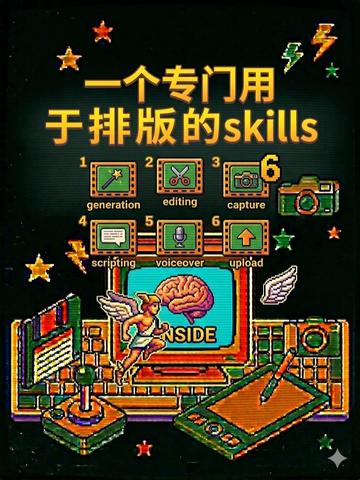
Learn the six-step typesetting workflow shown in the image—generation (draft/layout generation), editing, capture (asset/screenshots), scripting (automation), voiceover (narration for video assets), and upload (export/publish). The guide explains each step’s goal, typical deliverables and prerequisites; specific tools and scripts shown in the graphic need separate verification.
Image Analysis
The following records visible evidence from image 1 according to requirements. Only readable text, interface steps, chart data, and visible phenomena are recorded; divided into “Facts,” “Unreadable/Uncertain Content,” and “Assumptions.”
Facts (directly visible/readable content and phenomena)
- Top large text (yellow/orange): “一个专门用于排版的skills”
- The phrase is Chinese for “一个专门用于排版的” followed by the English word “skills.”
- A row of numbered English labels in the middle (left to right):
1. generation
2. editing
3. capture
4. scripting
5. voiceover
6. upload
- The word “INSIDE” is visible on the screen (center of the monitor, shown with a brain image).
- Notable graphic elements in the image:
- A retro/pixel-art style computer monitor showing a brain and the word “INSIDE.”
- A winged cartoon character holding a pen or pencil (pixel/illustration style) near the monitor.
- A camera icon (top right) with the number “6” beside it (corresponding to item 6).
- A scissors icon (for editing), a wand-like icon (for generation), a microphone icon (for voiceover), an upload/up arrow icon (for upload), a document/paper icon (for scripting), etc.
- A keyboard, drawing tablet/graphics tablet and stylus at the bottom of the image (left/right), and an open or upright book-like object.
- A dark background (near black) with colored small stars, lightning, and other decorative elements; overall colorful pixel/neon style.
- The numbers 1–6 are clearly labeled and correspond to the listed English labels.
- The overall style is pixelated/retro-game illustration, with bright orange, green, teal, purple and other high-saturation colors.
Unreadable or uncertain content
- The spacing or typography details between the Chinese header and the English word (e.g., exact casing or styling of “skills”) are visible to the eye but not readable at pixel-perfect font attribute level.
- Very small text inside some icons (if any) cannot be read at the current resolution (e.g., micro-annotations near icons).
- The specific identity or symbolic meaning of the cartoon character (e.g., whether it is a mascot) cannot be determined from the image alone.
- Very small edge decorations or fine lines/letters at the image edges are not readable at this resolution.
Assumptions (reasonable interpretations based on visual information, not direct text)
- The image is likely a promotional or explanatory infographic introducing a set of skills related to “typesetting/layout,” enumerated as generation, editing, capture, scripting, voiceover, upload.
- The brain and “INSIDE” on the monitor likely intend to convey an “internal workflow” or “inside the tool/mind” concept.
- The winged pen-holding character may symbolize creativity, speed, or a designer/typesetter persona.
- The pixel/neon aesthetic probably targets an audience interested in games, retro digital styles, or young creatives.
Note
SkillPI Creation Analysis
Purpose:
- The image appears to be a visual infographic or promotional graphic intended to present a categorized workflow or set of skills for typesetting/layout. It lists six stages: generation, editing, capture, scripting, voiceover, and upload. It is suited to use as an explanatory visual for teaching, an outline, or a product/service feature illustration.
Key evidence from the image (per image_text):
- Pixel/retro art style; central monitor showing a brain and the word “INSIDE”; top header combines Chinese text with the English word “skills.”
- Clear numeric sequence 1–6 with English labels and associated icons (scissors, wand, microphone, camera, upload arrow, document).
Suggested steps tied to the listed categories (interpretive and not specified by the image):
- Generation: create initial layout drafts or content—could be text generation, template generation, or layout mockups.
- Editing: refine the generated drafts—adjust typography, spacing, and visual details.
- Capture: collect assets or take screenshots; prepare images/graphics for inclusion in the layout.
- Scripting: automate repetitive layout tasks, batch processing, or template-based exports via scripts (the image does not name specific scripting languages or platforms).
- Voiceover: if the output includes video or narrated presentations, add voiceovers or audio tracks as needed.
- Upload: export final files and upload or publish to the target platform or deliver to clients.
Prerequisites to reproduce a similar workflow:
- Define the intended deliverable type (print-ready layout files, web layouts, social media graphics, video assets, etc.).
- Select and prepare editing/typesetting software or tools compatible with the deliverable (the image does not specify particular tools or plugins).
- Gather required assets (text, images, icons, voice scripts) and output specifications (dimensions, resolution, file formats).
- If using scripting for automation, set up the appropriate scripting environment and confirm permissions for batch operations or template processing.
Items to verify (not provided in the image):
- Exact tools, plugins, or named “skills” referenced by the graphic (the image lists categories but not specific implementations).
- File formats and data flow between steps (e.g., what file type does generation produce for editing?).
- The scripting environment or language implied by “scripting” (e.g., whether it refers to InDesign scripts, After Effects expressions, Node.js tooling, or something else).
- The role and necessity of “voiceover” in the workflow (image shows an icon, but it is not clear whether voiceover is required or optional and for what final asset type).
Notes and limitations:
- The above “steps” are reasonable interpretations to help structure a typesetting workflow based on the image labels; the image itself does not provide executable tool lists, scripts, or step-by-step commands. To provide reproducible instructions or script examples, a clear target (desired output type and chosen tools) is required.