
SkillSpector: NVIDIA's Official Skill Firewall
Learn how to use NVIDIA's SkillSpector to scan a Skill directory for potential risks. Covers manual scans, scheduling periodic audits, and integrating the scanner into Agent install rules so Codex can run checks before installation. Includes what to verify (download, invocation method, integration prerequisites).
Image Analysis
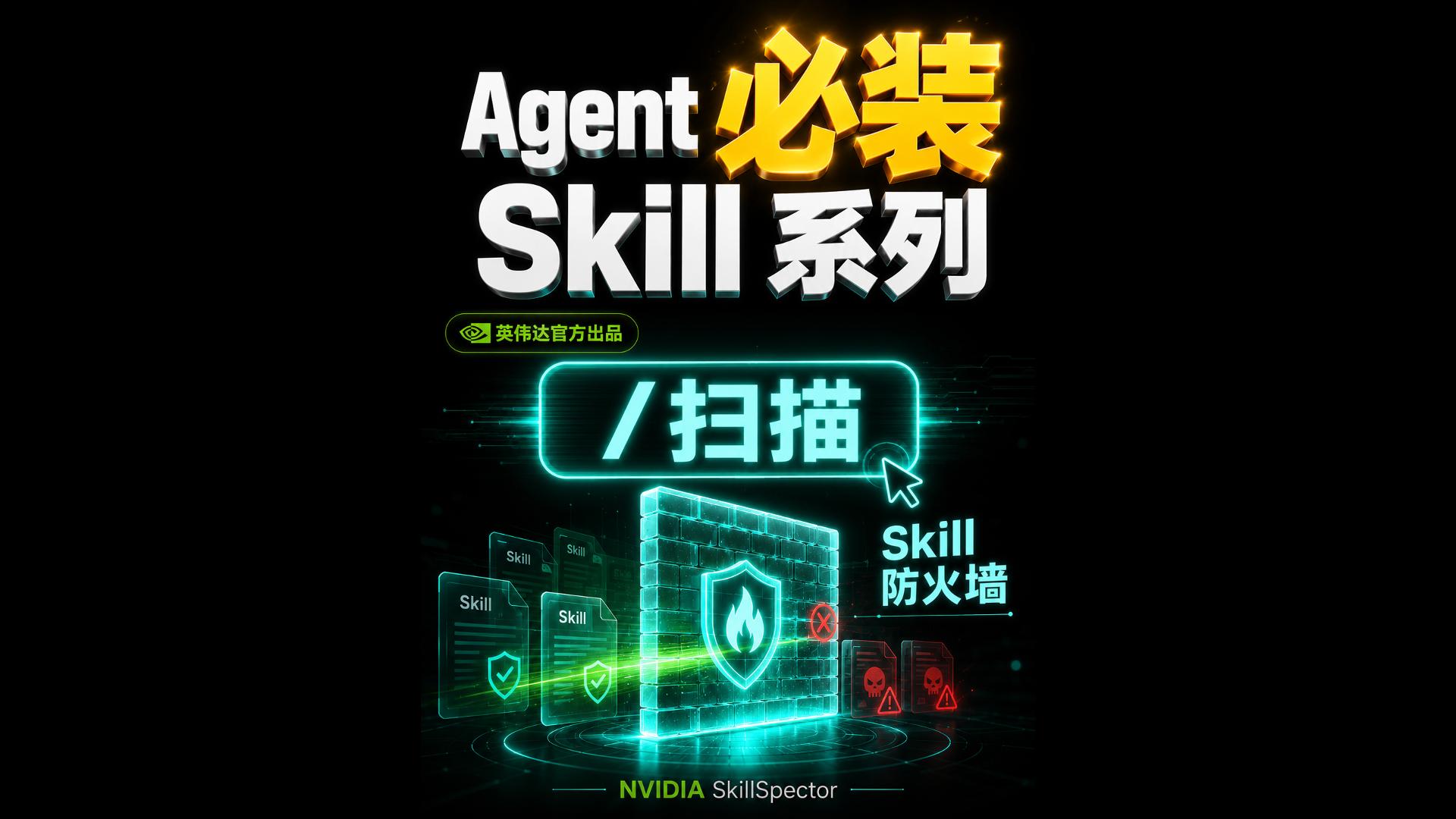
Image 1 — Visible facts (readable/visible items, listed top-to-bottom / left-to-right)
Readable text (verbatim with position/style annotations for recognition)
- Top center (large 3D text): Agent 必装 Skill 系列
- “Agent” is white 3D English text;
- “必装” (must-install) is gold 3D Chinese text;
- “Skill 系列” (Skill series) is white 3D ("Skill" in English, "系列" in Chinese).
- Below and slightly left of “必装”, inside a green oval (with small icon): 英伟达官方出品 (NVIDIA official product)
- Left side of the oval shows a small graphic similar to the NVIDIA logo (green).
- Upper center, there is a glowing rectangular button with text: /扫描 ("/scan" in cyan neon style)
- To the right of this button is a mouse pointer (arrow) icon pointing at it.
- Center-right near the graphic there is text: Skill 防火墙 (Skill Firewall)
- “Skill” in English, “防火墙” in Chinese, rendered in cyan neon style.
- Bottom center (small text): NVIDIA SkillSpector
- “NVIDIA” in green, “SkillSpector” in white or light color (written together).
Visible UI/interaction elements (factual description)
- A prominent glowing "/scan" button with a mouse pointer icon (indicates clickable/interactive element).
- A "firewall" graphic made of blocky bricks/mesh with a shield icon; the shield has a flame symbol (all in glowing cyan/green).
- Left side shows multiple file/card style icons labeled "Skill", some with green shields or check marks (indicating safe/passed).
- Right side near the firewall shows a red module/device icon with a skull and warning triangle (red) — indicating a threat/danger.
- A green beam/scan line travels from left to right through the files toward the firewall, depicting a data/scan flow.
- Overall dark background with cyan/green neon effects and accents of gold and red warning colors.
Charts/data
- No numeric charts or statistics visible (no lines, bars, or numeric tables).
- Multiple occurrences of the label "Skill" but no numeric values or percentages.
Unreadable or uncertain items (location specified)
- Small text/lines around the firewall's bottom and background are too small/blurred to read clearly (below firewall and along bottom edge).
- Some small icons/text on file cards are blurred; main "Skill" label is readable but smaller subtitles/annotations are not.
- Any additional small text to the right of or around "SkillSpector" at the bottom is not legible at the current resolution/crop.
SkillPI Creation Analysis
Intended use:
- The image and summary indicate SkillSpector is intended to detect and block potential risks in Skill artifacts for Agent scenarios, acting as a "skill firewall" to scan and classify Skills (e.g., safe, suspicious, malicious).
Image evidence highlights (verifiable visual facts):
- The presence of the label “NVIDIA SkillSpector” and an “NVIDIA official” mark suggests an association with NVIDIA (this should be verified via official channels).
- Visual elements—glowing "/scan" button, scan beam, shielded Skill cards on the left, skull-marked red module on the right, and a firewall graphic—collectively depict a scan → intercept → allow flow.
Steps to use the tool (based on observable summary and image; avoid inventing exact commands or parameters):
1) Obtain SkillSpector: Acquire SkillSpector from an official or trusted source and confirm installation or access instructions (download, service endpoint, or package availability).
2) Identify the Skill directory: Determine the path or location of Skills to be scanned and ensure the scanning account has read access.
3) Run a scan and review results: Execute SkillSpector (refer to official docs for invocation method—CLI, API, or GUI) and review its output to identify flagged items and decide remediation (quarantine, delete, mark trusted).
4) Schedule periodic audits: Automate periodic scans via system schedulers, CI/CD pipelines, or task schedulers to continuously monitor new or changed Skills (confirm SkillSpector supports scripted invocation or APIs for automation).
5) Integrate into Agent install rules: Add a pre-install check in the Agent’s installation workflow so the Agent (or Codex) triggers SkillSpector and conditions installation on scan results; verify the Agent platform supports inserting such pre-install hooks.
Prerequisites to reproduce/check behavior:
- Access to a legitimate distribution of SkillSpector or an authorized service endpoint;
- Knowledge of where Skills are stored and appropriate permissions to scan them;
- Ability to run scans in the target environment (OS compatibility, user privileges, network access);
- For automation/integration, confirmation that SkillSpector offers a CLI/API or other scriptable interface;
- For Agent/Codex integration, confirmation that the Agent platform supports external pre-install checks or calling external tools.
Items to verify (do not assume; check these concretely):
- Official download page, installation steps, and licensing for SkillSpector;
- Invocation methods (CLI, API, GUI) and the exact outputs/report formats;
- Supported platforms/OS and minimum privilege requirements;
- Official guidance or examples for integrating SkillSpector into Agent workflows or with Codex;
- The specific kinds of checks performed (e.g., malicious code detection, permission misuse, external dependency checks).
Notes:
- This interpretation is drawn from the provided summary and image; it does not invent internal implementation details or specific command syntax. Verify all operational details against official documentation before implementation.