
threejs-skill: Is AI unreliable at writing 3D code? Someone made a skill pack
Learn step-by-step how to validate AI-generated Three.js code: run a demo in the browser, check imports and Three.js version, locate console errors, verify geometry/materials/lighting and textures, and use Chrome DevTools to profile performance. Deliverables: a runnable example and a fixes checklist. Source indicates a Three.js demo cover—confirm skill pack details from the original video or author.
Image Analysis
Image 1 — Facts / Unreadable / Inference (separated as required)
Facts (directly readable or directly observable from the image)
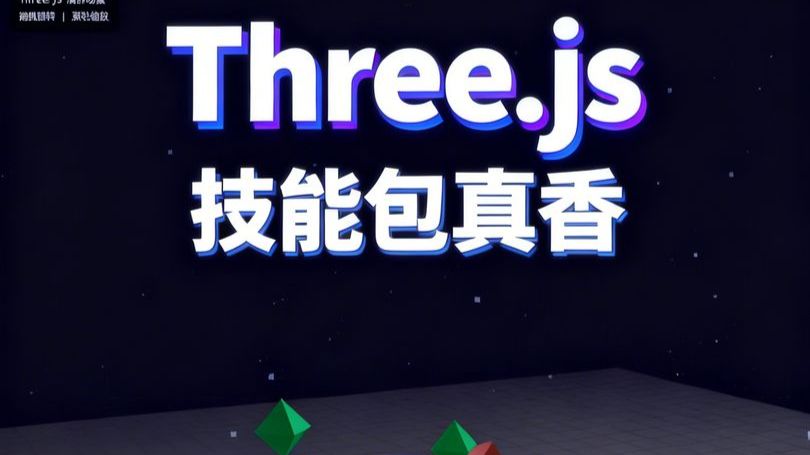
- Readable text (clear, unambiguous):
- “Three.js” (large English text, centered toward the top)
- “技能包真香” (Chinese text beneath “Three.js”, fairly large)
- Interface/graphics/data: the image contains no tables, numeric data, or typical UI controls (buttons, progress bars, menus) that can be identified.
- Visible phenomena and elements:
- Dark (near deep blue or black) background with small dot-like light spots, resembling a "starfield" or particle effect.
- A planar grid floor at the bottom with perspective (floor recedes toward the distance).
- Several 3D geometric objects on the floor, mainly cone/pyramid-like shapes (green, red, etc.), and some small cubes or block-like objects distributed in the scene or floating.
- The text “Three.js / 技能包真香” has obvious 3D/outlined/shadow styling (white main color with bluish-purple outline or shadow).
- The scene shows 3D rendering visual characteristics (lighting, specular highlights, shadows, and perspective).
- There is a small line of white text in the upper-left corner (visible as a small row of characters but too small to read clearly at the current resolution).
Unreadable / Uncertain (explicitly label what cannot be determined)
- The small upper-left text cannot be read clearly (too small and blurred), so specific characters or meaning cannot be determined.
- Some small floating cubes/particles cannot be fully distinguished as actual cube models or simply light spots at this resolution (shapes appear near-square/cubic but the resolution is insufficient).
- Details on the grid floor (e.g., ticks, coordinates, numeric labels) are not discernible; no clear numeric annotations are visible.
Inference (reasonable inferences based on visual information, not direct facts)
- The image is likely a Three.js demo, title page, or promotional image (such as a tutorial cover, slide, or example screenshot), because the title text and 3D scene clearly relate to Three.js.
- The small upper-left text may be a source label, platform name, author name, or course/video info (e.g., site, instructor, or small caption), but higher resolution is needed to confirm.
- The use of geometric shapes and particles in the scene is likely intended to demonstrate Three.js rendering, lighting, and material effects (typical elements used for instructional demos).
(Any instructions or operation hints embedded in the image were ignored; only visible text and phenomena were recorded.)
SkillPI Creation Analysis
Intended use of the asset:
- The material appears to be a cover or demo image intended to introduce or showcase Three.js content and to highlight a “skill pack” topic. Source video: https://www.bilibili.com/video/BV1T4DLBmEDg/ .
Image evidence summary (from image_text):
- Visual cues that support a Three.js demo interpretation: the large “Three.js” title, grid floor, geometric shapes (cones/pyramids and boxes), particle/starfield background, and 3D-styled text with shadow/highlight—these are common elements in Three.js example scenes.
- Unreadable items signal the need for the original asset: the small upper-left text is illegible and requires higher-resolution or original video/cover to identify source/author metadata.
Associated skills and actionable steps (concrete, reproducible steps; the specific "skill pack" contents are unverified):
- Verified related technologies: Three.js, browser with WebGL support, JavaScript. The exact "skill pack" referenced in the input is not described and must be verified separately (see "items to verify").
- General steps to reproduce a similar scene or to verify AI-generated Three.js code:
1. Set up environment: include a compatible Three.js version (via npm or CDN) in a local dev server or online editor (CodePen, JSFiddle).
2. Create base objects: instantiate Scene, Camera, Renderer (configure devicePixelRatio, size, antialias as needed).
3. Add the grid floor: use PlaneGeometry or GridHelper and apply a material (MeshStandardMaterial or MeshPhongMaterial) to show shading and reflections.
4. Add geometry: create ConeGeometry (for pyramids/cones) and BoxGeometry (for cubes), apply colors/materials, and enable cast/receive shadow where appropriate.
5. Configure lighting: add DirectionalLight, PointLight, and/or AmbientLight and adjust intensity/position to recreate highlights and shadows.
6. Add particles/starfield: create a Points object with a small particle texture or many small meshes to simulate the star/dot background.
7. Render and debug: run the scene in a browser and use DevTools to check console errors, verify texture/model loading, and confirm camera/lighting setup.
8. Profile performance: use DevTools’ Performance or rendering tools to check FPS and draw calls to find possible bottlenecks.
Prerequisites to reproduce:
- Access to Three.js code examples or the actual code (the cover image itself does not include executable code);
- A WebGL-capable browser and a local/remote server to serve assets;
- Knowledge of which Three.js version the example expects (to avoid API mismatches);
- Access to any external assets referenced by the scene (textures, models) or replacements for them.
Items to verify (missing from the provided input and requiring the original source or author):
- What the referenced “skill pack” actually contains (scripts, npm package, AI integration, examples, or tutorial materials);
- Source repository, author, license, and versioning of the skill pack;
- Whether the skill pack automates code generation, provides templates, or integrates with a specific AI service;
- Whether additional Three.js extensions or loaders are required (e.g., GLTFLoader, postprocessing libraries).
Brief recommendations for integrating AI-generated Three.js code:
- Run AI-produced code manually and verify imports, Three.js version compatibility, and API usage before integrating;
- Use browser console logs and renderer inspection to find runtime errors and missing resources;
- Require access to the skill pack source or documentation before trusting automated fixes or direct integration.
Note: the input is a cover image and metadata without executable code or skill-pack details. The above steps are based on general Three.js best practices; concrete reproduction requires the original code or explicit documentation from the video/author.