
Episode 5: A God-level Skills Suite Dedicated to Typesetting!
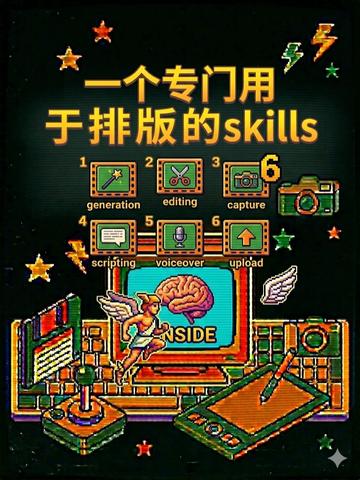
Learn a practical six-step typesetting workflow shown in the image: generation → editing → capture → scripting → voiceover → upload. This guide explains each step's purpose, suggested tool categories, expected deliverables (layout files, exported assets, narrated video), image evidence, prerequisites, and verification items needed to reproduce the process.
Image Analysis
The following summarizes visible content from image 1, organized into “Facts,” “Unclear/Uncertain,” and “Speculation.”
Facts (readable text, interface steps, chart data and visible phenomena in the image)
- Readable text (verbatim):
- Top large text: 一个专门用于排版的 skills
- Steps/labels (numbered 1–6, small English text underneath):
- 1 generation
- 2 editing
- 3 capture
- 4 scripting
- 5 voiceover
- 6 upload
- Inside the screen (monitor) an English word is visible: INSIDE
- Apparent interface steps/structure:
- There are numbers 1 through 6 arranged in a row (or a horizontal icon sequence), each with a small icon and an English label (as listed above).
- The overall layout is pixel/retro electronic illustration style; the center shows a computer monitor with keyboard, tablet, camera and other objects around it.
- Visible graphic elements and phenomena (description only, no inferred meaning):
- Black background; overall pixel-art style with bright yellow, orange, green, pink, blue colors.
- Stars and lightning graphics scattered near the top as decoration.
- Bottom/center visible elements:
- A monitor with keyboard; inside the monitor is a brain icon and the word “INSIDE”;
- A character with wings in a running/flying pose, appearing to bring the brain into the monitor;
- A drawing tablet with stylus at lower right;
- A small box/device resembling a camera or equipment at the left;
- Small icons corresponding to each numbered step:
- 1: a wand/“magic” generation icon (shape resembles a wand and is identifiable);
- 2: scissors icon;
- 3: camera icon;
- 4: a document/page icon with a few lines of text;
- 5: microphone icon;
- 6: upward arrow upload icon (inside a square or button).
- The art is pixel style (retro game vibe), colors dominated by orange/yellow/green with bright outlines.
Unclear / Uncertain details
- Some small text or fine details are hard to read:
- Finer decorative details on small icons (for example, tiny decorations on the wand, facial details of the character) are not fully discernible.
- Tiny text/symbols on buttons or devices around the monitor are unclear and cannot be transcribed word-for-word.
- The exact typography details of “一个专门用于排版的 skills” (for example whether “skills” is lowercase) are visible at thumbnail size but may vary in precise layout—this is uncertain.
Speculation (marked as speculation, not verified fact)
- Possible meaning:
- The image may be listing six skills or a six-step workflow used for “typesetting/layout design” (generation, editing, capture, scripting, voiceover, upload).
- The central winged character and brain motif may symbolize creativity/ideas entering the design (“INSIDE”), but this is an interpretive reading, not directly readable text.
- Other inferences:
- The style and icon arrangement could be used for a poster, cover, or promotional material (not confirmed).
- Decorative stars and lightning likely serve stylistic embellishment to convey a retro pixel/game feel (not confirmed).
SkillPI Creation Analysis
Intended use of the piece:
- The image appears to function as a visual poster/cover presenting a six-step skill set or workflow aimed at typesetting/layout design. The intended audience is likely creators who produce visual layouts or explanatory videos about layout processes.
Image evidence (verifiable elements present in the image):
- Top heading contains the Chinese phrase “一个专门用于排版的 skills.”
- A horizontal sequence labeled 1–6 with English labels: 1 generation, 2 editing, 3 capture, 4 scripting, 5 voiceover, 6 upload.
- Central monitor shows a brain icon and the word “INSIDE.”
- Pixel-art style, keyboard, drawing tablet, camera-like device, microphone icon, upload arrow, and decorative stars/lightning are visible.
Steps associated with the labeled skills (inferred workflow from the image labels; exact meanings require confirmation):
- 1 generation: create initial assets or layout drafts (text, images, or generated prompts/materials).
- 2 editing: edit and refine assets and layout (typography, spacing, color, composition).
- 3 capture: capture screenshots, export images, or record footage of the layout for demonstrations or assets.
- 4 scripting: write scripts—either content scripts (e.g., video script, narration) or automation scripts for batch processing/export.
- 5 voiceover: record or synthesize narration to accompany a video or walkthrough of the layout.
- 6 upload: publish or upload the final deliverable to a hosting or distribution channel.
Prerequisites to reproduce this workflow (what you would need to prepare before attempting reproduction):
- Clarify which specific tools will be used for each step (generation tool, layout/desktop-publishing or design software, capture/recording tool, scripting environment, audio recording or TTS tool, and target hosting platform).
- Source editable files and assets (text, images, templates, fonts) and any required licenses.
- Basic skills for layout editing and audio recording, or access to services/tools that provide those capabilities.
- Specifications for final outputs (file formats, resolution, video specs, upload requirements).
Items to verify before implementation:
- Whether “skills” refers to a named product or a conceptual set of steps (is there a specific tool called “skills”?).
- Exact definitions and inputs/outputs for each numbered step (e.g., what “generation” produces and what “capture” means in this context).
- Any hidden or omitted intermediate steps, required templates, or font/licenses not shown in the image.
- Whether “INSIDE” and the brain motif are decorative or represent a brand/feature.
Note: The above step mappings and prerequisites are reasoned from the visible labels and icons in the image. They are not a verified tutorial; confirm tool choices and step details before attempting to reproduce a working pipeline.