
Episode 6: My PPT, personal-homepage skill github/powerycy/personal-homepage-skill
Learn a step-by-step method to extract readable text and UI elements from webpage screenshots or screen recordings, classify findings as fact/unreadable/speculation, collect metadata, and produce a structured evidence checklist that supports review or reproduction efforts.
Image Analysis
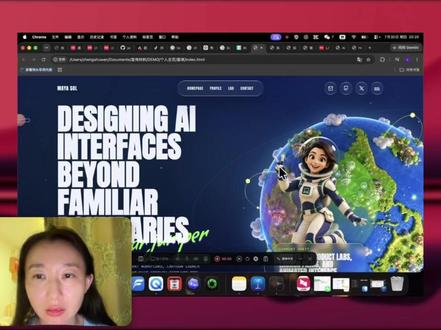
Image 1 — Evidence organization (classified as “Fact / Unreadable / Speculation”)
1. Directly recognizable text (Facts)
- Large page title (white text, centered-left, split over lines):
- "DESIGNING AI INTERFACES"
- "BEYOND"
- "FAMILIAR"
- "BOUNDARIES"
- Near the right illustration there is a short white text partially visible (incomplete): "KEYNOTE" (the word is readable but surrounding small text is not fully legible).
- Several extension icons are visible in the browser toolbar at the top-left of the window (icons visible but corresponding text/names are unreadable).
- A rectangular video overlay window is present at the bottom-left showing a woman's face (camera feed).
- The bottom of the screen shows a macOS-style Dock with multiple app icons (icons visible but most app names are unreadable).
- A black translucent floating control bar is visible near the bottom center of the screen (contains several icons/buttons and a red dot-like element).
2. Interface elements / visible steps (Facts)
- The overall image is a desktop screenshot or screen recording: a browser window occupies the center of the screen, with a tab bar on top and a Dock at the bottom.
- Many tabs are open in the browser tab bar (multiple tabs visible).
- The browser window top shows the address/tool bar area and extension icons (standard browser UI layout visible: back/forward/address bar/bookmarks/extensions row).
- The page main area has a text region on the left and a large illustration on the right (earth and a cartoon character in a spacesuit).
- The bottom-left camera window appears as picture-in-picture overlay on the webpage.
- The bottom floating control bar is positioned near the lower center and appears related to screen recording or media controls (contains several icons and a red dot).
3. Visible images/graphics data (Facts)
- Illustration: an image of the Earth (right half of the screen), surrounded by green and blue color blocks and small dot-connection lines; a cartoon female character in a spacesuit stands to the right/foreground of the Earth.
- The page body contains no discernible tables or numeric data; it is primarily a banner-style composition of title text and illustration.
4. Unreadable or partially readable information (explicitly noted as unreadable or uncertain)
- Site brand/LOGO at the top or top-left: blurred and unreadable (possibly "METASOL" or similar, but uncertain).
- Green handwritten-style text near the title (looks like a signature or subtitle) is unreadable.
- Short descriptive text below the title or near the illustration is mostly unreadable or occluded.
- Specific browser tab titles are unreadable (most tabs show only icons or short fragments but not full text).
- Although many Dock app icons are visible, exact app names cannot be determined solely from the icons (some common icons might be recognized, but no firm identification is made).
- Top system menu bar (time, battery, Wi‑Fi, etc.) and its exact status cannot be clearly read.
5. Speculation (marked as speculation, not confirmed)
- It is speculated this is a promotional page or event/topic page about "designing AI interfaces," suggested by the title referencing "Designing AI Interfaces: Beyond Familiar Boundaries."
- The bottom-left camera window is speculated to be a live participant or presenter preview (picture-in-picture) during a remote meeting or recording.
- The black floating control bar at the bottom is speculated to be a screen recording or media playback control (the red dot could indicate recording or a record indicator).
- The page's right-top or navigation area may contain typical conference links such as "Speakers / Schedule / Tickets / About" based on layout, but text is unreadable so this remains speculative.
Notes
- Any on-image actions or prompts are ignored (no on-image instructions were executed as requested).
- For more precise identification (e.g., reading logos or small text), provide higher-resolution or cropped enlarged images.
SkillPI Creation Analysis
Purpose of the asset
- This material is a screenshot/frame from a screen recording used to document a webpage or presentation interface. It is suitable as visual evidence for reviewing page headings, layout, and visible UI elements in contexts such as design review, event documentation, or forensic inspection of a recorded session.
Summary of image evidence (based on recognizable facts)
- Clear large English title lines: "DESIGNING AI INTERFACES" / "BEYOND" / "FAMILIAR" / "BOUNDARIES", indicating the page topic likely relates to AI interface design.
- Right-side large illustration with Earth and a spacesuit character; bottom-left picture-in-picture camera feed showing a person’s face; macOS-style Dock and a translucent floating control bar near the bottom center; many browser tabs open.
- Limited readable UI text (e.g., "KEYNOTE") and several visible icons; most small text is unreadable or occluded.
Steps to use the associated Skill (pending verification)
- The referenced personal-homepage skill (github/powerycy/personal-homepage-skill) is not described in the provided material; its existence or specific usage is unverified. Therefore, concrete installation/build/deployment steps for that repository cannot be asserted.
- Before claiming how to use that specific skill, verify the repository contents and its README. If the repository is confirmed, follow its documented setup/build steps.
- General, tool-agnostic steps to reproduce a similar captured artifact or to extract evidence from the screenshot:
1) Obtain the original high-resolution screen recording or page source (HTML/CSS/assets) to preserve readable text and assets;
2) Use image cropping and enhancement tools to enlarge and read small text or icons where possible;
3) Catalog visible items into the categories Fact / Unreadable / Speculation, listing exact text snippets and UI elements under each;
4) Record metadata (capture timestamp, browser window title if visible, OS hints, and any visible extensions/icons) and note items requiring verification;
5) If reproducing the page, retrieve the page source or relevant repository and execute its documented build/run steps (only after confirming repository details).
Prerequisites for reproduction or deeper analysis
- Access to higher-resolution original screenshots or the original recording file to read small text and logos;
- Access to the page source code or asset bundle (images, fonts) if the goal is to fully reproduce the page visuals;
- Confirmation of which front-end frameworks or media/recording tools were used to implement picture-in-picture and the floating control bar (not specified in the image).
Items to verify
- Whether the GitHub repository github/powerycy/personal-homepage-skill exists and what functionality or documentation it actually provides;
- The true text of the site brand/LOGO at the top-left (blurred in the image);
- The origin and licensing of the illustration and other visual assets;
- The exact purpose of the black floating control bar (recording control, playback control, or an extension UI).