
5 Powerful Skills — Install Them to Supercharge Codex!
Guide based on image evidence: identify Codex branding, learn a checklist to verify extension sources, and follow general steps for installing and configuring Skills for Codex (obtain source, install/enable, configure, test). Also lists prerequisites and key verification items to ensure safe installation.
Image Analysis
Image evidence #1整理
Source: not provided (URL: not provided)
1) Readable text (transcribed line-by-line)
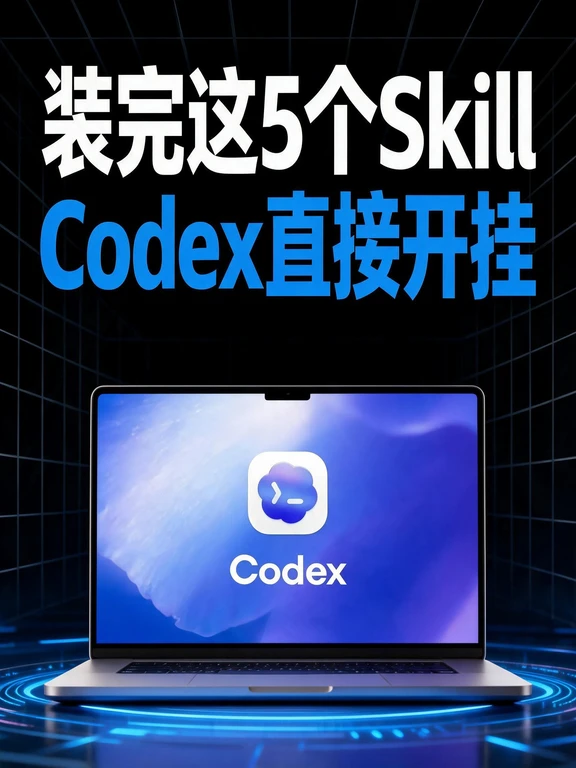
- Main title (two-line layout):
- First line (large white text): Install these 5 Skills
- Second line (blue text, partially English): Codex goes OP / Codex supercharged
- Text below the laptop screen:
- Codex
2) Interface elements, image composition and observable facts
- Central foreground: a laptop showing an app icon and the word “Codex” on its screen.
- Icon shown on the screen: white rounded-square background; inside is a blue/purple gradient cloud- or bubble-like shape containing a white mark resembling a command prompt symbol (possible right angle bracket or arrow); only the silhouette/contrast is visible.
- The laptop has a visible top notch; screen bezel and keyboard area are visible (keyboard details unreadable).
- Background is a black perspective grid extending into depth; the laptop sits on a blue glowing ring or light effect, creating a “stage” impression.
- Dominant colors: deep blue / blue-purple and black; text in white and bright blue.
- The image contains no tables, charts, numeric data, step numbering, or discernible clickable UI elements or menu text.
3) Chart/data
- No charts, numeric values, time or percentage data are discernible.
4) Visible but not fully legible content
- The white symbol in the icon's center is not fully clear (suspected to include ">" or a command-prompt-like glyph), cannot confirm exact character by pixels.
- Individual keyboard keys are unreadable due to resolution and angle.
- The distant grid background may contain fine text or details, but resolution/composition prevents identification.
5) Facts vs. inferences (separated)
Facts (only items clearly visible in the image)
- The image presents a bilingual headline equivalent to “Install these 5 Skills Codex goes OP”.
- The screen shows the word “Codex” and a rounded-square icon with a blue/purple gradient.
- A laptop with a notch is placed on a blue glowing ring against a black perspective grid background.
- The image contains no explicit step instructions, tables or numeric data.
Inferences (reasonable visual inferences, not direct transcriptions)
- The image likely aims to promote or advertise something related to “Codex” and additional Skills (this is an interpretation of theme/composition, not a direct textual claim).
- The icon may represent a product or app named “Codex” (inference based on co-location of text and icon).
- Blue glow and tech-grid visuals suggest an intended “high-tech” or “AI/software” visual concept.
6) Ignored content
- No operational instructions or action recommendations from the image were executed or restated (the transcription only lists readable text and visible phenomena).
SkillPI Creation Analysis
Intended use of the asset:
- Based on the visual elements and headline, the asset appears to be promotional: signaling that installing five Skills will significantly enhance Codex. This is an interpretation of the image’s messaging, not a verbatim source claim.
Key points from the image evidence:
- Verifiable visual facts include the bilingual headline referencing “5 Skills” and “Codex”, the presence of a rounded-square blue/purple icon next to the word “Codex”, and a laptop with a notch placed on a blue glowing ring against a black grid background.
- The image does not disclose the actual names of the five Skills, installation steps, or source URLs for those Skills—those details are absent or unreadable.
Associated Skill usage steps (important: the source does not list specific Skill names; the following are general, commonly used steps and must be verified against the actual Skill documentation before execution):
- Template installation/verification workflow (to be confirmed for each specific Skill):
1) Verify Codex’s host environment and version compatibility with the Skill;
2) Obtain the Skill from an official or trusted distribution channel (official site, verified marketplace, or repository);
3) Install or enable the Skill in Codex or its host application, granting only necessary permissions;
4) Configure required settings (API keys, model selections, hotkeys, resource paths) per the Skill’s documentation;
5) Run test cases or quick checks to confirm the Skill’s functionality and capture logs/errors for troubleshooting.
- These steps are generic best practices; concrete commands, file names, or configuration values must be taken from the specific Skill’s official instructions.
Prerequisites to reproduce (based on the visual evidence and common requirements):
- A functional Codex environment (the client/application that runs Codex) and appropriate access credentials/permissions.
- Access to the Skill distribution/source (download or extension marketplace) and network/system permissions to install third-party extensions.
- Any required runtime dependencies, API access, or keys documented by the Skill provider.
Items to verify before proceeding:
- The actual identities and official sources of the “5 Skills” shown or referenced; the image itself does not list them.
- Whether the displayed icon and “Codex” branding correspond to an official product or a third-party derivative—confirm trademark/branding ownership.
- Permission scopes and privacy/security implications of enabling each Skill (e.g., external API calls, data sharing), which must be reviewed against official privacy policies and permission prompts.
Notes and source handling:
- The image evidence transcribed here is objective and the analysis intentionally avoids fabricating Skill names, capabilities, or reproducibility claims.
- The image notes its source as “not provided (URL: not provided)”. However, the submission metadata includes an external link supplied with the original input; use the original publisher link to retrieve full details and verify the five Skill names and installation instructions before attempting installation.