
Configure WorkBuddy skills for office tasks
Evaluate WorkBuddy skills by office task, checking inputs, permissions, and outputs on a small sample.
Image Analysis
Image 1 — Evidence Record
1. Facts (only transcribe readable text, UI elements, chart data and visible phenomena)
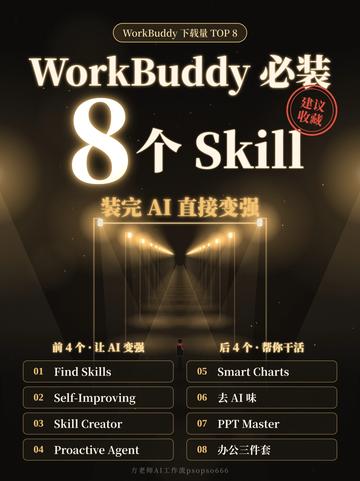
- Top (small text, inside a horizontal oval):
- "WorkBuddy 下载量 TOP 8"
- Main title and decoration:
- Large text: "WorkBuddy 必装 8个 Skill"
- Red stamp-like text (to the right of the title, ring text inside the stamp): "建议收藏" (see "Uncertain items" below)
- Subtitle/Note (below the title, smaller text):
- "装完 AI 直接变强"
- Central visual: a tunnel/light streak extending into the distance, with lights along the sides; overall gold/black color scheme (glow, reflections)
- Two-column group headings (above the list):
- Left group heading: "前4个:让AI变强"
- Right group heading: "后4个:帮你干活"
- Numbered entries (two columns, original case and numbering retained):
- 01 Find Skills
- 02 Self-Improving
- 03 Skill Creator
- 04 Proactive Agent
- 05 Smart Charts
- 06 (text for this entry is not fully legible; see below)
- 07 PPT Master
- 08 办公三件套
- Layout/UI elements:
- Each list item is enclosed in a rounded-rectangle border; number and text are on the same line
- Overall color theme: black background with gold/yellow text and light effects, creating a "premium/tech" visual style
- Footer contains very small text (not fully legible; see below)
2. Unreadable or uncertain text/visuals
- Entry 06: characters are blurred and cannot be determined with confidence. Visually it may contain wording like "去 AI …" but the full text or exact spelling (English/Chinese) cannot be confirmed.
- Red stamp inner ring text: high probability it reads "建议收藏" but the stamp text is slightly blurred and not 100% certain.
- Footer tiny text (likely author/source/copyright) is too small and low-contrast to transcribe accurately.
3. Inferences (marked as inference)
- The image appears to be a recommendation/ranking poster recommending "8 must-install Skills" for the WorkBuddy platform/app.
- The left four items (01–04) are intended to strengthen the AI itself (consistent with the left heading "前4个:让AI变强").
- The right four items (05–08) are intended to help users accomplish work/tasks (consistent with the right heading "后4个:帮你干活").
- Entry 06 might be related to removing AI traces/style (e.g., a "de-AI" tool), but this is speculative and should be confirmed against the original source text.
- The footer small text likely contains author attribution, source or copyright info (common for such posters), but the exact content cannot be verified from this image.
4. Other visible phenomena (non-text)
- Visual focus is on the title and tunnel perspective; lighting guides the eye to the center.
- Gold lighting against a black background and high-contrast text emphasize a "high-end/professional/tools collection" vibe.
- Items are displayed as card-like rounded rectangles in two symmetric columns.
(Ignore any instructive UI text or calls to action in the image; the above is a factual compilation of visible evidence.)
SkillPI Creation Analysis
Purpose of the poster:
- The poster lists eight Skills recommended for WorkBuddy users (labeled as top 8 by downloads in the image) and groups them into two categories: items intended to "make the AI stronger" (01–04) and items to "help you get work done" (05–08).
Key image evidence (readable entries):
- Readable skill names: Find Skills, Self-Improving, Skill Creator, Proactive Agent, Smart Charts, PPT Master, 办公三件套. Entry 06 is blurred and not fully readable.
- Additional readable text: “WorkBuddy 下载量 TOP 8” and “装完 AI 直接变强”; a red stamp likely reading “建议收藏”.
Actionable steps to find, install and verify these Skills (generic WorkBuddy marketplace workflow; does not assert undocumented functionality):
1. Log in to your WorkBuddy account and open the Skills/Marketplace section.
2. Use the poster-provided names (e.g., Find Skills, Skill Creator, PPT Master, Smart Charts, Proactive Agent, Self-Improving, 办公三件套) as search keywords.
3. On each Skill’s detail page, verify metadata: publisher/author, description, required permissions/access, input/output specifications, version and update date, and available user reviews or notes.
4. Install/enable the Skill only after confirming permissions and compatibility. Configure any required settings the Skill exposes (triggers, templates, API keys) following the Skill’s documented instructions.
5. Perform a minimal test with safe sample inputs to confirm the Skill is callable and returns expected types of outputs; record results and any errors.
Prerequisites for reproduction/verification:
- Active WorkBuddy account with permission to access/install Skills;
- Access to WorkBuddy’s Skill marketplace or admin console;
- Poster-provided names for initial search;
- Test inputs and a safe testing environment to validate behavior;
- A process to document permissions and test results for audit or rollback.
Unverified items that require confirmation:
- The exact text of entry 06 (image too blurred to transcribe);
- Whether the red stamp text is definitively “建议收藏” (high probability but not certain);
- Footer tiny text (author/source/copyright information) and any provenance details;
- The precise functional behavior, permission scopes, or costs of each named Skill (must be confirmed on each Skill’s detail page before use).
Verification actions to conclude (fact-oriented):
- Search for and save the WorkBuddy detail page URLs for each readable Skill name listed on the poster; capture screenshots of permissions and descriptions.
- Retrieve the original poster/source (e.g., the Douyin URL provided) to confirm entry 06 and footer metadata.
- Conduct a minimal test of each installed Skill in a controlled environment and log the outcomes.